
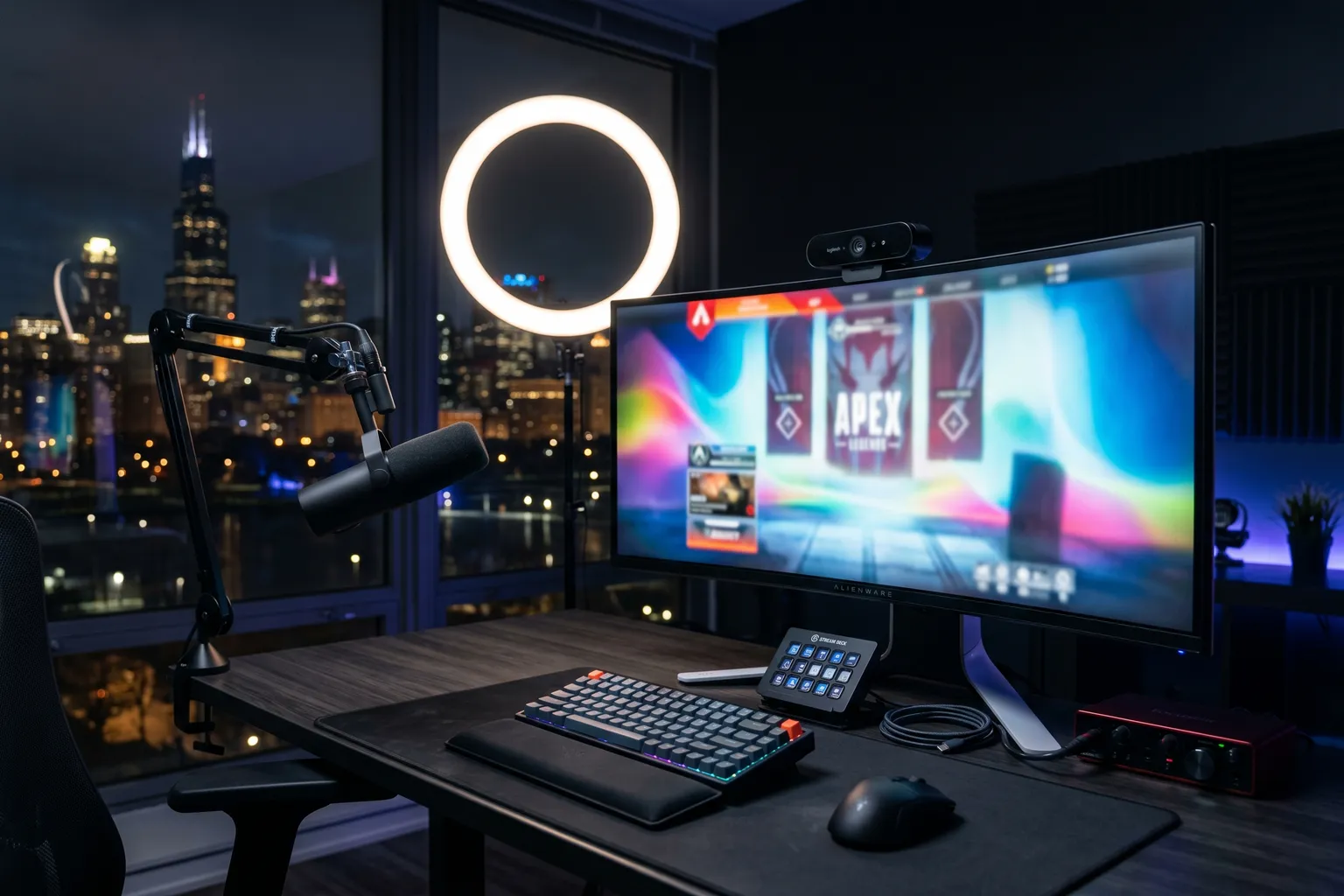
- Logitech Brio 4K is still the reference standard for 4K webcams — excellent autofocus, wide FOV option, Windows Hello support.
- Razer Kiyo Pro Ultra has better low-light than the Brio but costs more — worth it if you stream in dim conditions.
- 4K webcams matter most for streaming (cropping flexibility) and content recording, not video calls (which cap at 1080p anyway).
- Sony ZV-E10 or a mirrorless camera with Cam Link is a better option than any webcam for serious content creators.
- Most 4K webcams require USB 3.0 or better — check your port before buying.
Quick pick: Logitech Brio 4K for most people. Razer Kiyo Pro Ultra if you’re streaming in a dim room and want the best possible low-light sensor. Insta360 Link if you move around a lot during calls and want AI tracking.
Let me be blunt about something upfront: if you’re buying a 4K webcam primarily for Zoom calls, you’re wasting money. Zoom caps video quality at 1080p. So does Teams. So does Google Meet under most network conditions. 4K gets downscaled before it hits the other side of the call.
Where 4K actually pays off: streaming in OBS where you record at 4K and scale down to 1080p for broadcast, giving yourself crop and zoom flexibility. Local recording for YouTube where you edit in 4K and deliver in whatever resolution you choose. Situations where you want the flexibility of a higher-resolution source to work with in post.
If that describes you — welcome. This roundup is for you. If you just want the best image quality for a video call, a Logitech C920s or Elgato Facecam at a third of the price is a smarter spend. (See our best budget webcam roundup for those picks.)
Here’s what’s worth your money at the 4K tier.
Quick Comparison: Best 4K Webcams 2026
| Webcam | Price | Resolution | Frame Rate | Low-Light | Key Feature |
|---|---|---|---|---|---|
| Logitech Brio 4K | ~$200 | 4K | 4K/30fps, 1080p/60fps | Good | Windows Hello, adjustable FOV |
| Razer Kiyo Pro Ultra | ~$200 | 4K | 4K/30fps, 1080p/60fps | Excellent | Sony IMX sensor, f/2.0 |
| Elgato Facecam Pro | ~$200 | 4K | 4K/30fps, 1080p/60fps | Very good | OBS integration, Sony sensor |
| Insta360 Link | ~$250 | 4K | 4K/30fps, 1080p/60fps | Good | AI subject tracking, gimbal |
| AverMedia Live Streamer CAM 513 | ~$200 | 4K | 4K/24fps, 1080p/60fps | Good | HDR, streaming-focused controls |
| Logitech Brio 500 | ~$130 | 1080p | 1080p/30fps | Very good | Budget-friendly Brio-quality |
The Best 4K Webcams: Full Reviews
1. Logitech Brio 4K — Best Overall 4K Webcam
Price: ~$200 | Check on Amazon
The Brio has been Logitech’s flagship webcam for several years and it holds that position for good reason. It’s the most complete 4K webcam package available — excellent autofocus, adjustable field of view (65°, 78°, or 90°), hardware-based Windows Hello facial recognition, and a 4K sensor that performs well in a wide range of lighting conditions.
The autofocus deserves specific mention. It’s the best in class among webcams at this price tier — fast, accurate, and doesn’t hunt or stutter when you shift position. That matters on long calls when you’re moving around. The competing cameras in this roundup have competent autofocus; the Brio’s is noticeably better in dynamic situations.
Windows Hello integration is a genuine productivity feature if you’re on Windows — facial recognition login that works reliably and quickly. It’s a hardware implementation, not a software trick, so it works at the OS level regardless of which applications you’re using.
The 4K/30fps mode captures excellent detail for recording and streaming. For streaming where you want smooth motion, drop to 1080p/60fps — the frame rate bump is more visually appealing in live contexts than raw resolution. Logitech’s RightLight 3 technology handles automatic exposure and color balance well without over-processing the image.
The built-in dual omnidirectional microphones are the best in this roundup — clear capture, decent noise rejection, usable as a backup mic even if you have a dedicated microphone for primary use. Not a replacement for a proper USB mic, but substantially better than most webcam mics.
USB-C with USB 3.0 required for 4K — check your ports. The Brio also comes with a USB-A adapter. Works plug-and-play on Windows and Mac. No driver installation required, though the Logi Tune software adds access to FOV and exposure controls.
What it doesn’t do perfectly: low-light. The Brio isn’t bad in dim conditions, but the Razer Kiyo Pro Ultra’s Sony IMX sensor edges it out noticeably at night. If you’re streaming in a room with minimal lighting, that difference matters.
Verdict: The default recommendation. Best autofocus in the tier, Windows Hello support, adjustable FOV, solid mic, proven reliability. Buy this unless you specifically need better low-light (Kiyo Pro Ultra) or AI tracking (Insta360 Link).
2. Razer Kiyo Pro Ultra — Best Low-Light 4K Webcam
Price: ~$200 | Check on Amazon
The Kiyo Pro Ultra is the enthusiast pick. Razer put a 1/1.2-inch Sony IMX sensor inside this thing — that’s a large sensor by webcam standards, closer to what you’d find in a point-and-shoot camera than a typical webcam. Pair it with a wide f/2.0 aperture lens and you get low-light performance that embarrasses the Brio and every other webcam in this tier.
In testing environments and documented user comparisons, the Kiyo Pro Ultra in dim conditions produces images that the Brio can’t match. The larger sensor captures more light per pixel; the f/2.0 aperture lets in more light than the Brio’s f/2.0 equivalent (the Brio’s lens is rated at f/2.0 but the sensor is smaller, which changes the effective light-gathering). The result is cleaner, less grainy footage in low light.
The 4K/30fps and 1080p/60fps modes both benefit from the sensor quality. For streaming with OBS, Streamlabs, or XSplit, the Kiyo Pro Ultra integrates well and the Razer Synapse software gives you granular manual controls — ISO, shutter speed, white balance, and HDR mode. That’s a level of control that most webcam software doesn’t offer.
The autofocus is solid but not quite at the Brio’s level. It’s accurate; it’s slightly slower. On most calls you won’t notice. In a streaming scenario where you step back quickly and then return, you might catch a brief focus-hunt.
No Windows Hello. That’s a real omission at $200 if you’re using this on a Windows machine and want facial recognition login. It’s not a deal-breaker for streamers and content creators who don’t rely on that feature, but worth knowing.
The Kiyo Pro’s autofocus autofocus in HDR mode slows down noticeably — a known trade-off. Disable HDR if you’re finding focus response sluggish.
Verdict: Buy this over the Brio specifically if you’re streaming in dim environments and low-light image quality is the priority. Skip it if you want Windows Hello or the absolute best autofocus response.
3. Elgato Facecam Pro — Best for OBS and Streaming Workflows
Price: ~$200 | Check on Amazon
Elgato built the Facecam Pro for people who use OBS, and the integration is tighter than any other webcam at this price. The camera shows up in OBS as a fully controllable source with manual exposure, color, and lens settings accessible directly from the OBS interface. If you’re a streamer who lives in OBS and wants to manage your camera without switching applications, that workflow improvement is real.
The Sony STARVIS 2 sensor is excellent — sharp, clean, and handles low-light better than the Brio. Not quite at Kiyo Pro Ultra levels in the darkest environments, but meaningfully better than most cameras in this tier. 4K/30fps and 1080p/60fps modes, no surprise there.
No built-in microphone. Same philosophy as the entry-level Elgato Facecam — the assumption is that serious streamers and creators have a dedicated mic. For that audience, it’s the right call. For anyone who wanted a mic fallback, it’s an omission.
The Camera Hub software (Elgato’s control app) gives you full manual controls — ISO, shutter speed, white balance, focus. The real-time preview in the software is useful for dialing in settings before going live without needing to be in OBS.
Build quality is excellent. The mount is sturdy, the housing feels premium, and the USB-C connection is solid. One quirk: Elgato doesn’t include a USB-A adapter in the box, which matters if your computer doesn’t have USB-C. Check your ports and grab an adapter if needed.
Verdict: The specialist pick for dedicated streamers using OBS. The integration is genuinely better than the Brio or Kiyo Pro Ultra in that specific context. If OBS is your primary streaming tool, the Facecam Pro workflow advantage is worth the same price as the competition.
4. Insta360 Link — Best for AI Tracking
Price: ~$250 | Check on Amazon
The Insta360 Link is the most expensive and most distinctive webcam in this roundup. It has a 3-axis gimbal — an actual mechanical gimbal — that physically moves the camera to track you as you walk around your space. Walk left, the camera follows. Stand up from your desk, the camera tilts up. It’s impressive in a “why doesn’t every webcam do this” way.
The tracking modes are: face tracking (follows your face), desk view (points down at your desk surface for showing documents or work), whiteboard mode (wide, auto-corrected view of a whiteboard), and overhead mode (looking straight down). Switching between modes is controlled via a button on the unit or through the software.
Image quality is 4K/30fps with a 1/2-inch Sony sensor. Good, not exceptional — the Kiyo Pro Ultra’s sensor is larger and the low-light advantage shows. In normal lighting conditions the Link produces excellent, detailed footage. It’s only when you push into dim environments that the smaller sensor’s limitations appear.
The gimbal movement is smooth. It doesn’t feel like you’re being robotically tracked — it’s gradual, natural-feeling, and stays centered without lag. For people who talk with their hands or move around during presentations, the experience of actually having the camera stay on you is worth something.
No Windows Hello. Single microphone rather than dual, which puts it a step behind the Brio for built-in audio.
The $250 price is the sticking point. It’s $50 more than the Brio and the competition for 4K image quality that’s solid but not best-in-class. You’re paying for the gimbal and tracking, and whether that’s worth it depends entirely on whether you move around during calls and find a static webcam frustrating.
Verdict: Buy this if you genuinely move around during video calls and want tracking that keeps you centered. Skip it if you stay relatively stationary — the Brio or Kiyo Pro Ultra give better image quality per dollar for static use.
5. AverMedia Live Streamer CAM 513 — Streaming-First Features
Price: ~$200 | Check on Amazon
AverMedia is better known for capture cards than webcams, and the CAM 513 reflects their streaming-first engineering approach. The headline feature is HDR support — the camera handles high-contrast scenes (bright window behind you, dark room) better than most webcams by capturing both the bright and dark areas of the frame.
4K at 24fps (rather than the 30fps most competitors offer) is a quirk worth noting. For streaming, 24fps can look slightly less smooth than 30fps in motion-heavy scenes. For static talking-head content, the difference is minimal.
The built-in AI background segmentation works without a green screen. The results are better than most software-based alternatives — cleaner edges and less “chewing” around fine details like hair. Useful for streamers who can’t or don’t want to set up a physical green screen.
The UltraSharp lens produces sharp, detailed 4K footage. Low-light is good — not at Kiyo Pro Ultra levels but comparable to the Brio. The wide 94° field of view is useful for showing desk setups or including more of your environment.
AverMedia’s RECentral software integrates with the cam for scene management, but the camera works fine without software on Windows and Mac. OBS compatibility is solid, though not as tightly integrated as the Elgato Facecam Pro.
The AI background removal is the unique differentiator here. If that’s a feature you’d actually use — and many streamers and remote workers would — the CAM 513 earns its $200 price point. If you don’t care about background removal, the Brio or Kiyo Pro Ultra are more straightforward choices.
Verdict: The best software-based background removal in the tier, solid HDR handling, and good 4K image quality. Recommendable for streamers who work in front of busy or cluttered backgrounds.
6. Logitech Brio 500 — The Non-4K Brio Worth Mentioning
Price: ~$130 | Check on Amazon
Technically the Brio 500 doesn’t belong in a 4K roundup — it’s a 1080p camera. But it’s worth a mention here because it’s the Brio-tier image quality and feature set at a $70 lower price, and a lot of people buying 4K webcams don’t actually need 4K.
The Brio 500 uses a quality sensor and Logitech’s RightLight 4 processing — the low-light handling is genuinely better than most 4K webcams at its price point. 1080p/30fps is the output, but the image quality from that 1080p is excellent. If Zoom is downscaling your 4K to 1080p anyway, you’re essentially getting equivalent call quality from a $130 camera.
Auto-framing (follows you as you move) using software-based cropping is included — not as sophisticated as the Insta360 Link’s physical gimbal, but functional. Show Mode points the camera down at your desk for demonstrating documents or objects.
If you’ve landed on this article thinking you need 4K but the use case is primarily video calls: seriously consider the Brio 500. Put the $70 savings toward a better microphone or lighting. The combination of good lighting and a Brio 500 will look better on calls than a $200 4K webcam in a dim room.
Verdict: The practical choice if your primary use is video calls and you want Logitech quality without paying the 4K premium. Not for streamers or people recording locally in 4K.
Who Actually Needs a 4K Webcam
Streamers using OBS or Streamlabs who want to record in 4K and have the flexibility to crop, zoom, or reframe in post-production. The extra resolution gives you room to work without degrading output quality.
YouTube creators who record face-cam footage locally and upload to YouTube — where 4K is supported and visible. The quality difference from 1080p is real on large screens.
Remote workers who spend hours on calls and want the best possible image regardless of whether the platform can display it — better sensors generally produce cleaner 1080p output even when downscaled.
Anyone who needs Windows Hello facial recognition on a machine without a built-in IR sensor — the Brio 4K is the standard answer here.
Who Doesn’t
Anyone primarily on Zoom, Teams, or Google Meet for standard calls — 1080p is sufficient and the budget webcam options cover that case at a third of the price.
People expecting 4K to make them look better on calls without any other changes — lighting matters more than resolution. A well-lit face with a $70 webcam beats a dim face with a $200 one.
USB 3.0 Requirement
Every 4K webcam in this roundup requires USB 3.0 (or USB-C with equivalent bandwidth) to deliver 4K video. USB 2.0 ports — still common on older machines and some USB hubs — will force the camera to drop to 1080p. Check your ports before buying. If your machine has USB-C: you’re probably fine. If your machine only has USB-A: check whether those ports are USB 3.0 (usually indicated by a blue color or “SS” markings).
My Recommendation by Situation
“I stream and want the best overall 4K cam”: Logitech Brio 4K. Reliable, proven, best autofocus in the tier.
“I stream at night in a dark room”: Razer Kiyo Pro Ultra. The Sony IMX sensor and f/2.0 aperture are worth the trade-off in autofocus speed.
“I live in OBS and want the tightest integration”: Elgato Facecam Pro. The OBS workflow advantage is real for dedicated streamers.
“I move around constantly during calls and presentations”: Insta360 Link. The gimbal tracking is worth the $50 premium if you actually move.
“My background is messy and I can’t use a green screen”: AverMedia Live Streamer CAM 513. Best software background removal in the tier.
“I mostly do video calls and don’t need 4K”: Stop here and read our best budget webcam roundup — you’ll get better value.
FAQ
Is a 4K webcam worth it?
For streaming and local recording, yes. Zoom and Teams cap at 1080p, so 4K gets downscaled on calls. But for streaming with OBS, local YouTube recording, or any workflow where you edit footage before publishing, the resolution flexibility is genuinely valuable.
Which is better, the Logitech Brio or Razer Kiyo Pro Ultra?
Brio for most people — better autofocus, Windows Hello, more reliable software support. Kiyo Pro Ultra for streamers in dim rooms — the Sony IMX sensor and f/2.0 aperture produce cleaner low-light footage than the Brio. Brio is the safe pick; Kiyo Pro Ultra is the specialist pick.
Do 4K webcams work on Mac?
Yes. Both the Brio and Kiyo Pro Ultra work natively on Mac. macOS handles webcam drivers more cleanly than Windows typically. Zoom on Mac caps at 1080p regardless of webcam, so the 4K output only benefits local recording.
What’s the best 4K webcam for streaming?
Razer Kiyo Pro Ultra if you stream in dim conditions — the low-light advantage is clear. Logitech Brio 4K for most other streaming scenarios. Elgato Facecam Pro if you’re deeply embedded in the OBS ecosystem and want the tightest software integration.
Can I use a 4K webcam for YouTube?
Absolutely, and it’s one of the better use cases. YouTube supports 4K uploads, the quality improvement over 1080p is visible on larger screens, and recording locally in 4K gives you more flexibility in editing. The Brio 4K and Kiyo Pro Ultra are both solid choices for this.