
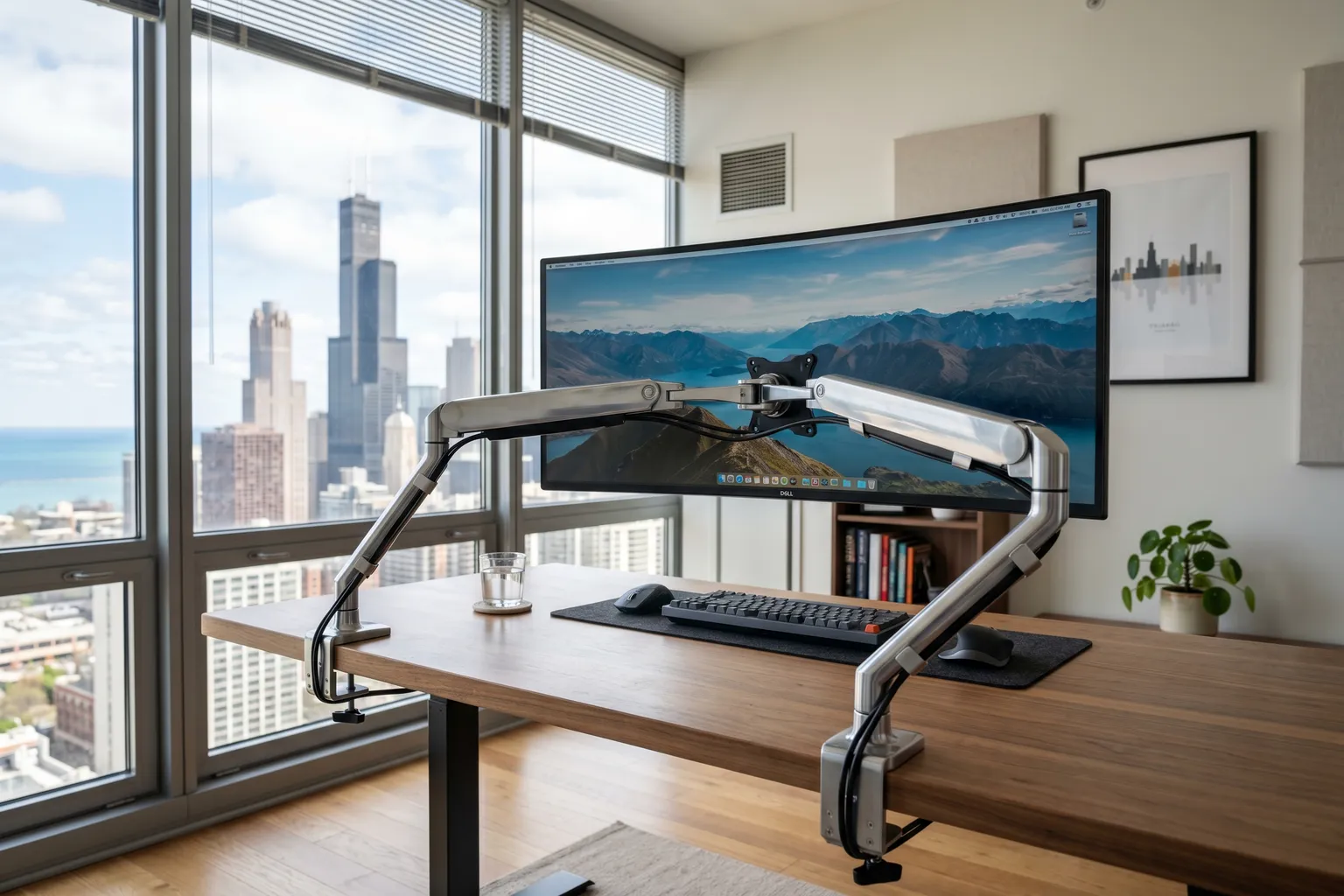
- Ergotron LX is the reference standard — it holds position, lasts years, and the tension adjustment actually works.
- The Amazon Basics monitor arm is a legitimate value pick at under $30 — not Ergotron quality, but good enough for most home setups.
- Weight capacity matters more than people realize. Most cheap arms fail with monitors over 17 lbs. Check your monitor's weight before buying.
- VESA compatibility: your monitor needs a VESA mounting pattern (usually 75x75mm or 100x100mm) to use any arm. Check before buying.
- Dual monitor arms save space but make cable management harder — budget extra time for setup.
The monitor stand that came with your display belongs in a drawer. Or a dumpster.
Monitor stands set your screen at one height, eat desk space, and do nothing for ergonomics. A monitor arm puts your screen exactly where your eyes need it, frees up the footprint underneath for things you actually use, and lets you swing the display out of the way when you need desk space for something physical. It’s one of those changes that, once you’ve made it, you can’t understand why you didn’t do it sooner.
The catch is that monitor arms vary enormously — from arms that hold position reliably for a decade to arms that start drooping within months. The price range is equally wide: under $30 to over $300. Knowing what you’re buying matters.
This list covers eight monitor arms worth considering in 2026, from the undisputed best to the budget option that punches above its weight. A good arm pairs directly with a good chair — if you’re still sorting out your ergonomic setup, read our best ergonomic chair roundup alongside this one.
Quick Comparison Table
| Monitor Arm | Price (approx.) | Max Weight | Max VESA | Mount Type | Dual? |
|---|---|---|---|---|---|
| Ergotron LX | ~$150 | 20 lbs | 100x100mm | C-clamp/Grommet | No |
| Amazon Basics Single | ~$25–30 | 17.6 lbs | 100x100mm | C-clamp | No |
| VIVO Dual Monitor Arm | ~$50–65 | 17.6 lbs each | 100x100mm | C-clamp/Grommet | Yes |
| Ergotron LX Dual Stacking | ~$280–320 | 20 lbs each | 100x100mm | C-clamp/Grommet | Yes (stacked) |
| Huanuo Dual Monitor Arm | ~$60–80 | 17.6 lbs each | 100x100mm | C-clamp/Grommet | Yes |
| North Bayou F80 | ~$80–100 | 33 lbs | 100x100mm | C-clamp | No |
| Fully Jarvis Monitor Arm | ~$179 | 20 lbs | 100x100mm | C-clamp/Grommet | No |
| Mount-It! Ultra-Wide | ~$90–120 | 33 lbs | 100x100mm | C-clamp/Grommet | No |
Before You Buy: Check These Two Things
1. Your monitor’s VESA pattern. Look at the back of your display. There should be four threaded holes in a square pattern — either 75mm x 75mm or 100mm x 100mm. If you don’t see them, your monitor may have a non-removable stand (some budget monitors do this). Every arm on this list requires VESA compatibility.
2. Your monitor’s weight. Pull up the spec sheet for your display — not just the screen size, the actual weight in pounds or kilograms. If you’ve got a 27-inch 1080p monitor you’re probably at 8–12 lbs and any arm will handle it. A 32-inch or larger display, or an ultrawide, might hit 18–25 lbs. Some budget arms top out at 17 lbs. Match the arm’s weight capacity to your monitor before buying.
Getting these two things wrong is how you end up with a drooping screen on day one.
1. Ergotron LX — The Reference Standard
Ergotron LX — ~$150
There isn’t really a debate here. The Ergotron LX is what every other monitor arm gets compared to, and most of them come up short.
The reason the LX has this reputation isn’t marketing. It’s the tension mechanism. Ergotron uses a spring-loaded system that you can tune to your monitor’s weight — there’s an adjustment bolt in the arm joint, and once you dial it in, the monitor holds position. Not for a week. Not for a few months. For years. The mechanism doesn’t lose calibration over time the way cheaper arms do. That’s the whole thing.
At 20 lbs max weight capacity, it handles most single monitors up to about 34 inches without issue. The arm has a substantial range of motion — 13 inches of vertical travel, 360-degree rotation at the arm end, tilt up to 75 degrees. Installation is genuinely straightforward: C-clamp attaches to the desk edge, or the included grommet hardware goes through a desk hole if you have one. Takes 20 minutes.
The aesthetic is clean and professional. The matte white and matte black finishes don’t look like IT equipment. It’s the kind of thing that improves how a desk setup looks, not just how it functions.
My only real complaint at this price: it handles a maximum VESA size of 100x100mm, which is fine for most monitors but won’t work with larger mounting patterns on some ultrawide or professional displays. If you’re running something over 34 inches with a 200x100mm or larger VESA pattern, check carefully.
Does it cost $120 more than the Amazon Basics arm below? Yes. Is it worth it? For a desk you use 8 hours a day, yes. The math is easy: $150 divided across 10 years of daily use is $15 a year. The cheap arm that needs replacing in 18 months is more expensive in the long run.
2. Amazon Basics Single Monitor Arm — Best Budget Pick
Amazon Basics Single Monitor Arm — ~$28
I had low expectations. I was mostly wrong.
The Amazon Basics arm isn’t Ergotron quality — the mechanism is looser, the materials are lighter, the long-term durability is an open question. But at $25–30, it does what it’s supposed to do for a lot of people and it does it without any drama.
C-clamp or grommet mount, handles up to 22 lbs (up from the previous version’s 17.6 lbs), VESA 75x75mm and 100x100mm. Installation is fine. The arm swings, tilts, and rotates with enough range for standard ergonomic positioning.
Where it falls apart: the tension adjustment is less precise than Ergotron’s. You’ll spend a bit more time getting it positioned. Over time — we’re talking 12–24 months of daily use — some users report gradual drift, where the screen slowly creeps down from where you’ve set it. This is the fundamental difference between budget arms and quality arms: the tension mechanism and whether it holds over time.
For a home office used occasionally, a kids’ desk, a second monitor that doesn’t move much, or anyone who genuinely can’t justify $150 right now: the Amazon Basics arm is fine. Not ideal, but genuinely workable.
I’d replace it before recommending it to someone who uses their desk professionally for 8+ hours a day. For that use case, just buy the Ergotron.
3. VIVO Dual Monitor Arm — Best Budget Dual Arm
VIVO Dual Monitor Arm — ~$50–65
VIVO has been making monitor mounting hardware for years and they know what they’re doing at this price point. The dual arm model is the most affordable way to get two monitors off the desk simultaneously, and it’s a better product than the price suggests.
Each arm handles up to 17.6 lbs, which covers most standard monitors up to 27 inches. The mount comes with both C-clamp and grommet options. Each arm moves independently — you can position one screen landscape and one vertical, or set them at different heights. Cable management channels run through the arm body, which is neater than external cable clips.
The limitation: at $50–65 for two arms, the build quality is exactly what you’d expect. The joints aren’t as smooth as the Ergotron, and the tension holds less precisely. For two matching monitors in the 24–27 inch range that you set once and don’t move much, this is entirely serviceable.
For a dual setup where you’re constantly repositioning — pulling one screen in close for detail work, pushing the other to portrait for reading — invest in the Ergotron LX Dual below. Frequent repositioning accelerates wear on budget joint mechanisms.
4. Ergotron LX Dual Stacking Arm — Best Dual for Heavy Use
Ergotron LX Dual Stacking — ~$280–320
The premium dual arm option, and the one I’d buy if I were setting up a primary workstation with two screens.
The “stacking” design puts both monitors on a single post with one arm extending left and one right, or one above the other. This is cleaner than the gooseneck dual designs that spread the arms wide. Each arm is functionally an Ergotron LX — same tension mechanism, same build quality, same 20 lbs capacity per arm.
At $280–320, this is a real purchase. But if you’re setting up a dual-monitor workstation you plan to use seriously for the next several years, this is the right answer. The tension mechanisms hold. The motion is smooth. The cable management is better than most. And Ergotron’s warranty and customer support are genuinely good — not the “contact us and wait two weeks” experience you get from budget brands.
One practical note: the stacking arm requires a more substantial clamp and desk attachment than single arms. Make sure your desk edge can support the weight of two monitors plus the arm hardware. Most solid wood or MDF desks handle this fine; thinner desktop materials may warrant additional reinforcement.
5. Huanuo Dual Monitor Arm — Mid-Range Dual Value
Huanuo Dual Monitor Arm — ~$60–80
Huanuo occupies an interesting position: better than VIVO, not as good as Ergotron, and priced in between. For a dual setup where budget is a real constraint but the VIVO feels a little too light, this is the middle path.
The build quality is a noticeable step up from the cheapest dual arms. The joints move more smoothly, the tension adjustment is more precise, and the materials feel more substantial. Each arm handles 17.6 lbs — same as VIVO — but the holding mechanism performs better in practice. Cable management is handled through clips along each arm rather than internal routing.
Setup takes about 45 minutes for most people. The instructions are decent. C-clamp and grommet mounts included.
Honest assessment: if you’re choosing between the VIVO and the Huanuo at $60–80, spend the extra $15–20 on the Huanuo. If you’re choosing between the Huanuo and the Ergotron LX Dual at $280–320, consider how much you’re actually going to move these arms day-to-day. Occasional adjustment — weekly or less — and the Huanuo is fine. Daily repositioning and the Ergotron is worth the money.
6. North Bayou F80 — Heavy Monitor Specialist
North Bayou F80 — ~$80–100
Most of the arms on this list top out at 17.6–20 lbs. The North Bayou F80 handles up to 33 lbs. That’s the whole reason to consider it.
If you’re running a 32-inch display, a large format gaming monitor, a professional display with a metal chassis, or anything with a specified weight over 20 lbs, your options narrow quickly. The F80 is the most accessible solution in this category — it’s widely available, well-reviewed by people running heavy monitors, and priced at $80–100 rather than the $200+ that many heavy-duty arms cost.
The gas spring mechanism handles the extra weight well. The arm isn’t as smooth or precise as the Ergotron LX, but for the weight class it’s operating in, it performs acceptably. VESA compatibility up to 100x100mm.
My concern: the build quality on North Bayou products is inconsistent across user reports. Most people have good experiences; a smaller percentage report joint looseness or mounting hardware issues. If you’re mounting an expensive heavy monitor on this arm, I’d inspect everything carefully during installation and tighten all joints before trusting it with your display.
For what it does — hold a heavy monitor in position at a price that doesn’t require a separate budget line — it’s the best option readily available.
7. Fully Jarvis Monitor Arm — Premium Mid-Range
Fully Jarvis Monitor Arm — ~$179 (fullyfurniture.com)
Fully doesn’t sell through Amazon, which is a deliberate choice — they’re a direct-to-consumer brand and the pricing reflects the cut they don’t have to give a marketplace. The Jarvis monitor arm is their single-arm offering, and it sits in an interesting spot: more expensive than the Ergotron LX at $179 vs. $150, but with a few meaningful differences.
The Jarvis arm handles up to 20 lbs and has a larger adjustment range than the Ergotron LX — 18 inches of vertical travel versus the LX’s 13. If you need to swing your monitor between significantly different heights (standing desk users, or anyone who’s tall and needs the screen very high), this extra range matters.
Build quality is comparable to Ergotron, though the aesthetic is different — Fully leans toward a more industrial look that works well with standing desk setups.
The reason I’d recommend the Ergotron LX over the Jarvis for most people: the Ergotron is $30 cheaper and has a longer track record. The Jarvis is excellent, but the LX has been proven across millions of installations over more than a decade. If you specifically need that extra vertical range, the Jarvis is worth the premium. Otherwise, the LX wins on value.
8. Mount-It! Ultra-Wide Monitor Arm — For Large Ultrawide Displays
Mount-It! Ultra-Wide Monitor Arm — ~$90–120
Ultrawide monitors present a specific problem: they’re physically large, they’re often heavier than their screen dimensions suggest, and the wider VESA patterns on some models don’t fit standard arms.
The Mount-It! Ultra-Wide arm addresses these directly. It’s rated for monitors up to 49 inches wide and up to 33 lbs, which covers most ultrawide panels currently on the market. The arm design is reinforced for the additional width and weight. VESA support includes 75x75mm, 100x100mm, and larger patterns up to 200x100mm, which is where many ultrawide manufacturers land.
The gas spring mechanism handles the weight well. The arm has a full range of motion — tilt, swivel, rotation — and the cable management is handled through channels in the arm body.
The honest tradeoff: it’s a heavier, larger arm than a standard single-monitor arm, and it takes more desk clamp pressure to hold the combined weight. Make sure your desk is solid enough. A wobbly desk plus an ultrawide monitor on an arm is a bad combination — the arm amplifies any movement.
If you’re running an ultrawide of 34 inches or larger, this arm solves problems that standard arms don’t. For anything 27 inches or smaller, stick with the Ergotron LX.
What Actually Matters in a Monitor Arm
The tension mechanism. This is it. Everything else is secondary. A quality tension mechanism holds the monitor in position over years of daily use. A cheap one drifts. Read reviews specifically looking for comments about “drifting,” “creeping,” or “won’t hold position” — these appear in reviews after 6–12 months of use and tell you more than the star rating.
Weight capacity. Match it to your monitor. Don’t assume. Look up your monitor’s weight on the manufacturer’s spec page. Add a couple of pounds of safety margin.
Desk compatibility. C-clamp mounts work on most solid desks with an edge of 1–3 inches. Grommet mounts require a pre-drilled hole (or drilling one). Glass desks need grommet mounts. Very thin desktops may need reinforcement.
Cable management. Almost all arms include some form of cable routing — either internal channels or external clips. Internal routing looks cleaner but makes changes harder. External clips are easier to adjust. Neither is dramatically better; it’s a preference thing.
Range of motion. More is better in theory, but most people set the arm once and don’t move it much. Unless you’re switching between sitting and standing multiple times a day, don’t pay a premium for range you won’t use.
The Monitor Arm and Ergonomics Connection
A monitor arm is only useful if you actually use the adjustment capability. The point is to put your screen at eye level when sitting (or standing) in a properly supported position — which means getting the chair right first, then adjusting the monitor arm to match.
The correct monitor height: top of the screen at approximately eye level, or slightly below. Screen distance: roughly an arm’s length away (24–28 inches for most people). Tilt: slight backward tilt of 10–20 degrees is comfortable for most.
If you set the arm height and find your neck bending up to see the screen, the arm is too low. If you’re looking slightly down, you’re in the right zone. Adjust once, properly, and leave it there.
Bottom Line
Buy the Ergotron LX if you’re buying one arm for a desk you use every day. There’s no reason to overthink it.
Budget is tight? The Amazon Basics arm does the job — just accept you might replace it in a couple of years.
Running two screens? The Ergotron LX Dual Stacking for a professional daily setup, the VIVO Dual if cost is the constraint.
Heavy monitor? North Bayou F80 is the most accessible option in that weight class.
Ultrawide? Mount-It! Ultra-Wide arm is purpose-built for it.
The arms that aren’t on this list? They’re probably not terrible, but they’re also not clearly better than what’s here. Stick with the known quantities.