
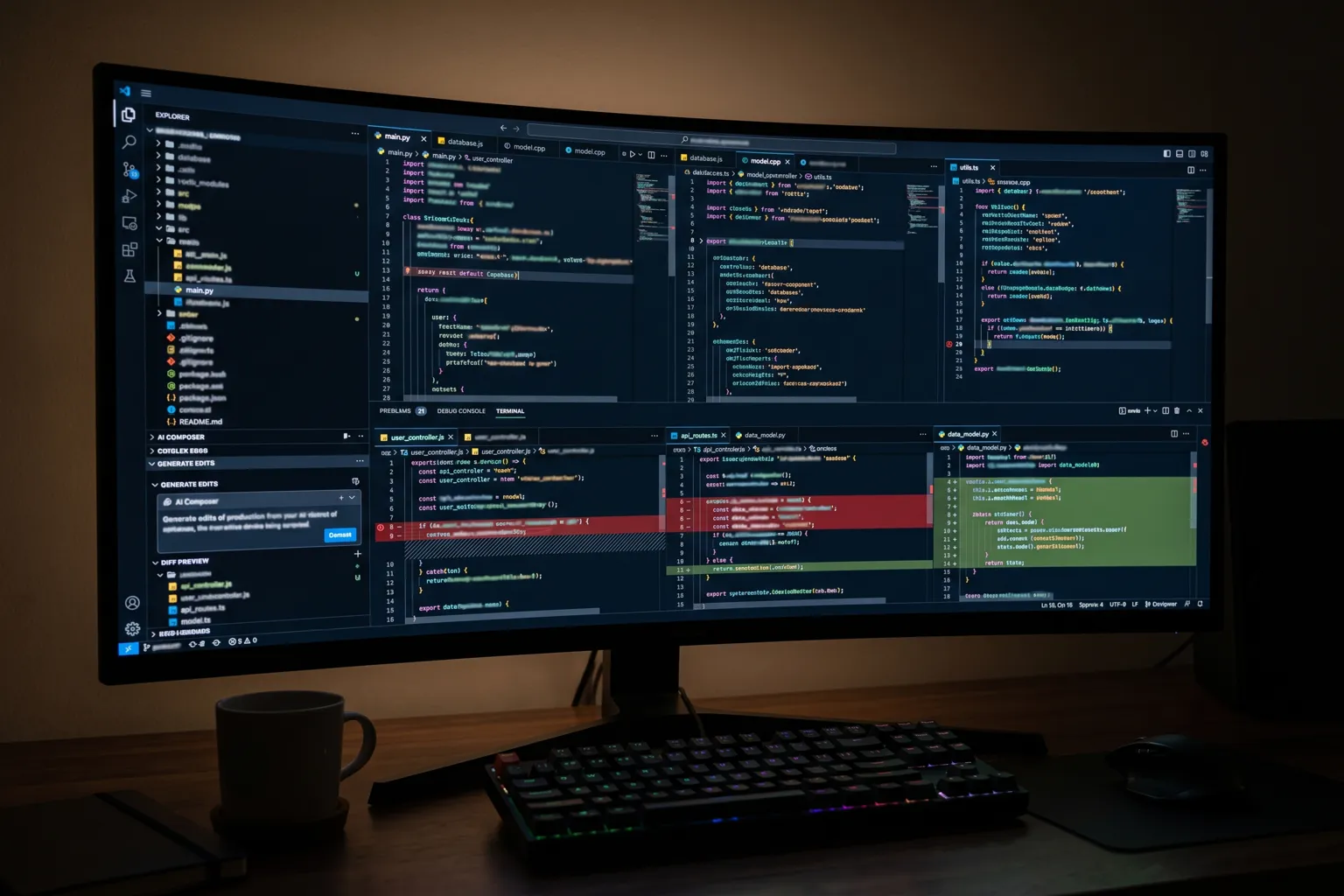
Composer is Cursor’s primary multi-file editing interface — the one you open with Cmd+I (or Ctrl+I on Windows) to describe changes and have them applied across your codebase. It’s different from Agent Mode (more autonomous, runs terminal commands) and different from Cursor Chat (more conversational, less edit-focused).
The issues Composer runs into are specific to its architecture. Don’t apply Agent Mode troubleshooting here and expect it to help.
Composer vs. Chat vs. Agent Mode — Quick Triage
Before troubleshooting, confirm you’re actually in Composer:
- Composer: Cmd+I, opens a panel where you type changes and see diffs. Applies edits directly.
- Chat (Cmd+L): Conversational, shows code suggestions but doesn’t auto-apply to files.
- Agent Mode: Cmd+Shift+J or via Chat with @agent. Runs autonomously, uses terminal.
If Tab isn’t doing what you expect or edits aren’t applying, confirm you’re in Composer and not Chat mode — the interfaces look similar but behave very differently.
Problem 1: Context Window Full Errors
What you see: “Context window exceeded,” “message too long,” or Composer starts making errors that look like it “forgot” earlier instructions or file contents.
Why Composer fills context fast: Every file Composer reads contributes tokens. A session that’s read 10 medium-sized files, had 20 back-and-forth messages, and applied multiple round-trip edits can easily fill 100K+ tokens of context — especially if those files contain large amounts of code or documentation.
Fixes:
Start a fresh Composer session. The most reliable fix. New Composer session (close and reopen with Cmd+I) starts with empty context. At the top of your new session, provide a summary of what was accomplished: “Previous session fixed the auth middleware. Continue with implementing the user profile endpoint in
routes/profile.ts.”Use
#filereferences sparingly. If you’re adding many#file:filenamereferences to a single Composer message, you’re loading all those files into context at once. Reference only the files directly relevant to the current change.Break large tasks into checkpointed sessions. For complex features, plan to use 2-3 Composer sessions. End each with a summary message that you can paste as context in the next session.
Avoid asking Composer to “read” directories. Asking Composer to understand an entire directory structure loads many files and fills context fast. Be specific about which files matter.
Problem 2: Tab Not Accepting Mid-Sentence
This trips up users coming from regular editor use.
The two Tab behaviors in Cursor:
Regular inline autocomplete Tab — in the editor, Tab accepts the ghost text suggestion (the gray text showing what the AI predicts you’ll type next). This is word-by-word, position-sensitive.
Composer Tab — in a Composer session, pressing Tab while Composer is showing a diff preview accepts the entire proposed change block. It’s not word-by-word.
The conflict: When you’re in a file being edited by Composer and the regular autocomplete is also showing a suggestion, Tab behavior can be ambiguous. You might be trying to accept an inline autocomplete suggestion but Tab is instead accepting a Composer diff.
Fixes:
- In Composer sessions: Be deliberate about when you press Tab. Use it to accept Composer’s full proposed edit, not for inline typing.
- If regular Tab completion isn’t working while Composer is open: Click outside the Composer panel to return focus to the editor, then use Tab for inline autocomplete normally.
- For mid-sentence completions in the editor: Use Escape to dismiss Composer’s overlay if it’s interfering, then type and use Tab for inline autocomplete.
- Check keybinding conflicts: Command Palette > Keyboard Shortcuts > search “accept” to see if Tab is bound to multiple actions that might conflict in the current context.
Problem 3: Multi-File Edits Failing or Going to Wrong Files
What you see: You ask Composer to make a change across multiple files, but only some files get updated, changes go to the wrong file, or Composer reports success but the files weren’t actually modified.
The file path hallucination issue. If Composer doesn’t have accurate context about your project structure, it may attempt to edit files that don’t exist at the paths it assumes. This is more common in large or unconventionally structured projects.
Fixes:
Open target files first. Open the specific files you want Composer to edit in the editor before starting the Composer session. Cursor gives Composer priority access to currently open files.
Be explicit about file paths. Instead of “update the user component,” say “update
src/components/User/UserProfile.tsx.” Full relative paths from the project root reduce hallucinated paths.Use
#filereferences in your Composer message.#file:src/components/User/UserProfile.tsxexplicitly loads that file into Composer’s context before it starts making changes.Review diffs before accepting. Composer shows you the diff before applying. Always review to confirm it’s editing the right files before clicking Accept. The Accept button in Composer applies all proposed changes simultaneously.
If a multi-file operation partially applies: Undo fully (Cmd+Z multiple times, or use Git to revert) and restart with a more explicit prompt. Partial applications leave your codebase in an inconsistent state.
Problem 4: .cursorrules Not Loading in Composer
What you see: Composer ignores your .cursorrules file’s instructions. The same instructions are followed in regular Chat but not in Composer sessions.
The root causes:
File location wrong.
.cursorrulesmust be at the exact project root — the same directory you opened in Cursor (the root folder shown in the Explorer sidebar). If you opened a subdirectory as your workspace,.cursorrulesat the actual project root won’t be found.Filename wrong. The file must be literally
.cursorrules— starting with a dot, no extension. A file namedcursorrulesor.cursorrules.mdwon’t load. On Windows, explorer can hide file extensions; confirm the actual filename.Workspace trust. In untrusted workspaces, Cursor may not load
.cursorrulesfor security. Trust your workspace.File too large.
.cursorrulesfiles that are very large (many KB) may be truncated when loaded into Composer’s context. Keep your rules file focused and concise — under 2KB ideally.
Verify it’s loading:
- In a Composer session, type: “What are the rules in my .cursorrules file?”
- If Composer describes the rules accurately, the file is loading.
- If Composer says it doesn’t see a .cursorrules file, the location or naming is the issue.
Problem 5: Composer Connection Errors
What you see: Composer shows a connection error, fails to generate responses, or the progress spinner runs indefinitely.
Composer uses Cursor’s AI backend. If Cursor’s servers are overloaded or there’s a platform issue, Composer requests fail. This is more visible in Composer than in inline autocomplete because Composer responses are larger and take longer to generate — making connection instability more likely to cause a full failure.
Fixes:
Check Cursor status. There isn’t a public status page from Cursor, but checking their Discord server is the best way to see if there’s a known outage.
Check your model selection. If you’ve selected an experimental or recently-added model in Cursor’s model picker, try switching to a stable model (GPT-4o or Claude 3.5 Sonnet). Experimental models can have availability issues.
Use a different network. Some corporate networks with proxy settings interfere with Cursor’s API connections. Try a hotspot or different network to rule this out.
Restart Cursor. Composer’s connection state can get stuck. A full Cursor restart (not just window reload) clears it.
Composer Not as Good at Multi-File Changes as You Expected
Not technically an error — but worth addressing since it’s a real frustration.
Composer is significantly better at targeted, specific changes than at open-ended architecture tasks. “Add input validation to the createUser function in routes/users.ts following the pattern in routes/products.ts” is the kind of request Composer handles excellently. “Refactor the entire auth system to use JWT” is where Composer can lose coherence across many files.
For large architectural changes: break them into explicit steps, run multiple Composer sessions, and review each diff carefully.
For non-Composer Cursor issues — AI not responding at all, autocomplete broken, or subscription problems — the Cursor AI not working guide covers the broader platform. And if you want to understand how Composer fits into the full Cursor toolkit before diving deeper, the Cursor AI review walks through all the features including how Composer, Chat, and Agent Mode are meant to work together.