
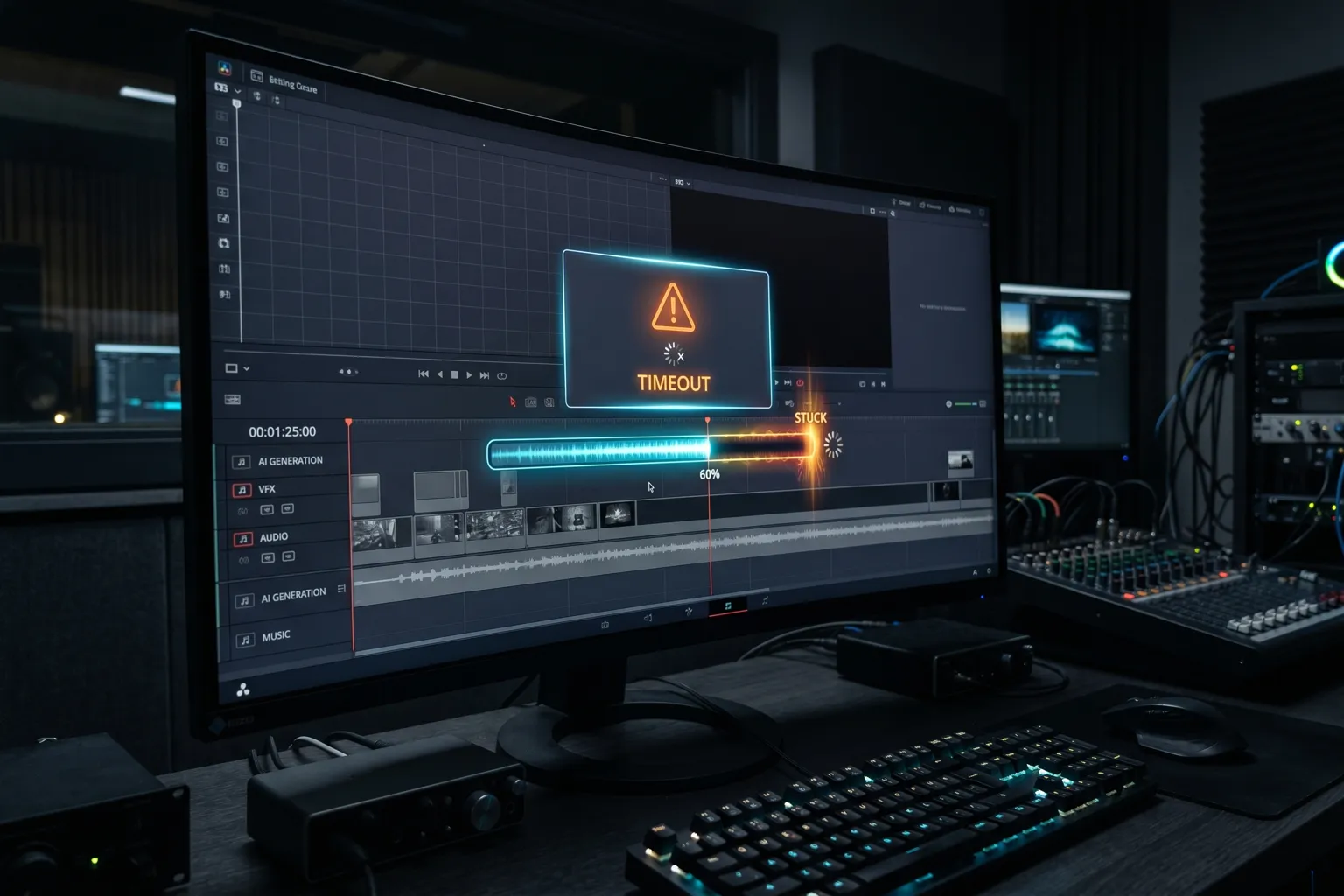
Gen-3 Alpha is Runway’s most capable video model, but it’s also the most resource-intensive thing on their platform. And unlike text or image generation, video generation failures are costly — both in credits and in the 90-120 seconds you just spent waiting.
I’ve been testing Runway ML for video production workflows, and Gen-3’s specific failure modes are worth understanding before you burn through a credit pack hitting the same wall repeatedly.
Gen-3 vs. Earlier Runway Models — What Changed
If you’re coming from Gen-2 or Runway’s earlier tools, the error profile has changed. Gen-3 Alpha is more capable but also:
- More compute-intensive per generation
- More sensitive to prompt phrasing (Gen-2 was more forgiving)
- Has a stricter 120-second timeout (Gen-2 could run longer)
- Uses a different credit model (per second of video rather than per generation)
Settings and workflows that worked reliably in Gen-2 may not transfer directly.
Problem 1: Generation Timeout at 120 Seconds
What you see: Your generation runs to the 120-second mark and then fails with a timeout error. The progress indicator may show some activity before stopping.
Why it happens: Gen-3 Alpha’s video generation is computationally expensive. Runway’s infrastructure has capacity limits, and during peak hours, generation jobs queue and may not complete within the 120-second server timeout. The complexity of your generation (motion amount, prompt complexity, resolution) affects how close to the timeout threshold your jobs run.
The credit question. Credits are charged at generation start. For timeout failures, Runway’s stated policy is to refund credits for jobs that fail in the first half of processing. But “first half” is server-side and not transparent to you. In practice, if you get a timeout and want credits back, contact support.
Fixes:
Try during off-peak hours. Runway’s US-based servers are busiest 10am-8pm PT. Generating early morning or late evening significantly reduces timeout frequency.
Reduce the generation parameters. Shorter videos (4 seconds instead of 10) and lower motion intensity reduce compute requirements and make timeout less likely. For testing prompts, use 4-second clips; extend to 10 seconds only for the final version.
Simplify your prompt. Highly complex prompts with lots of specific motion instructions can trigger longer generation times. Test with a simplified version of your prompt first; add complexity once you have a working baseline.
Check Runway’s status page. status.runwayml.com shows infrastructure incidents. If there’s an active incident, wait it out rather than burning credits on likely-to-timeout jobs.
Use the retry button. When a timeout occurs, Runway shows a retry option that requeues your exact job. Retry once — the queue may have cleared. If it times out twice, wait and try later.
Problem 2: Credit Burn Without Output
This is the most frustrating Gen-3 issue. Credits deducted, generation “completed,” but the video is either not in your assets or is a blank/black video.
Credit deduction timing. Credits are charged at generation start. Whether you get credit back for a failed generation is not automatic — it requires contacting support.
The two scenarios:
Silent failure with credit deduction: Generation appeared to run but produced no output in your assets. Most common during Runway infrastructure issues or at very high load. Check your Assets library — sometimes videos appear there even when they don’t show in the generation view.
Black video output: Video file exists but is entirely black. This is usually a generation error where Runway produced an output file but the generation failed internally. Some very specific prompt configurations trigger this; if it happens consistently on one prompt, rephrase it.
Fixes:
Check Assets library first. Before assuming a total failure, go to Assets > Videos. The video may have generated but failed to display in the main interface.
Use the in-app feedback button immediately. The thumbs-down or flag icon near a failed generation creates a support ticket with the job ID automatically attached. This is the fastest path to a credit refund.
Contact support at help.runwayml.com if the feedback button isn’t available. Include your job ID (visible in the URL when viewing a generation), timestamp, and the credit amount you’re requesting back.
Problem 3: Seed Not Reproducing Results
Gen-3 Alpha seeds work differently from Stable Diffusion or Midjourney seeds. Setting the same seed does not guarantee identical output.
What seeds actually do in Gen-3: A seed initializes the noise pattern for the generation. Same seed + same prompt = similar overall motion direction and rough composition, but not frame-identical output. The model introduces variation through its diffusion process that isn’t fully controlled by the seed.
Why consistency matters and how to achieve it instead:
If you’re trying to create consistent characters, scenes, or motions across multiple clips:
- Use image-to-video (I2V) mode rather than text-to-video. Starting from the same image gives much stronger visual consistency than relying on seeds.
- Use motion presets for consistent motion patterns. “Camera pan right” as a structured motion instruction is more reproducible than describing the motion in free text.
- Use Director Mode (if on Runway’s higher tiers) for more granular motion control.
Seeds are useful for: Narrowing the exploration space — if you found a seed that produces your preferred motion style, use it as a starting point for variations. Just don’t expect pixel-level reproduction.
Problem 4: Excessive Motion Blur
Gen-3 Alpha can produce motion blur artifacts — not realistic camera motion blur, but the smearing blur of a model struggling with fast motion or complex scenes.
When it appears: Most commonly with:
- Fast-moving subjects
- High-motion scenes with many simultaneous movements
- Camera motions that combine pan, tilt, and zoom simultaneously
- Low-light scenes with multiple moving elements
Fixes:
Reduce motion intensity in the motion brush/settings. If you’re using motion brush, lower the intensity slider for elements showing blur artifacts.
Slow down the scene. Prompts describing slower, more deliberate movement produce less blur than “fast-moving” or “rapid” descriptors.
Simplify the number of simultaneous movements. One primary motion (either camera or subject, not both fast simultaneously) generates more cleanly than complex multi-element motion.
Avoid “dynamic” and “energetic” in prompts. These push Gen-3 toward high-motion outputs that blur more easily. Be specific about what moves and how.
Problem 5: Generation Quality Inconsistency
Same prompt, different day, very different quality. This isn’t imagination — Runway updates Gen-3 Alpha’s model weights periodically.
You can’t pin to a model version in Runway’s consumer product. If quality changed noticeably, it may be a model update. Runway doesn’t publish a changelog for Gen-3 model updates.
What to do:
- Keep a record of prompts that reliably produce good output. If a prompt that worked last week is producing worse results today, Runway’s model may have been updated.
- Report quality regressions via the feedback button. Runway’s team actively monitors these signals.
- Adjust your prompts if needed — model updates sometimes require prompt recalibration.
Quick Reference: Gen-3 Credit Costs
| Generation | Duration | Credits |
|---|---|---|
| Text-to-video | 4 seconds | 20 credits |
| Text-to-video | 10 seconds | 50 credits |
| Image-to-video | 4 seconds | 20 credits |
| Image-to-video | 10 seconds | 50 credits |
| Video-to-video | 4 seconds | 20 credits |
Credits don’t roll over month to month on standard plans. If you’re approaching your monthly limit, use short clips (4s) for testing.
For general Runway issues not specific to Gen-3 — account access, subscription, or older model errors — the Runway AI not working guide covers the broader platform. Gen-3 Alpha specifically is a different beast: higher capability, higher resource requirements, and its own set of failure modes that earlier Runway models didn’t have.